Official Documentation & Step-by-Step App Tutorials

How to Use Every App in SSH Desktop

Comprehensive step-by-step user guides, screenshots, keyboard shortcuts, and configuration manuals for all 25 native server administration applications.

Headless Linux Server Quickstart

Deploy SSH Desktop Web Daemon in 30 Seconds

For headless cloud VPS (Ubuntu, Debian, RHEL, AlmaLinux, Rocky, Alpine, Arch), execute our audited 1-line script to install the background daemon and launch the web UI:

$ curl -fsSL https://sshdesktop.com/install.sh | sudo bash

After installation, retrieve your generated initial admin credentials and login token:

$ sudo cat /var/lib/sshdesktop/initial-admin-credentials.txt
✓ Zero external dependencies ✓ Passes requiretty checks ✓ Runs natively on Port 443 with self-signed or Let's Encrypt TLS

Category 1: Desktop Shell & Interactive Terminal

App 1

macOS Sonoma Cloud Desktop Shell

Intent: macOS cloud desktop, remote linux desktop GUI
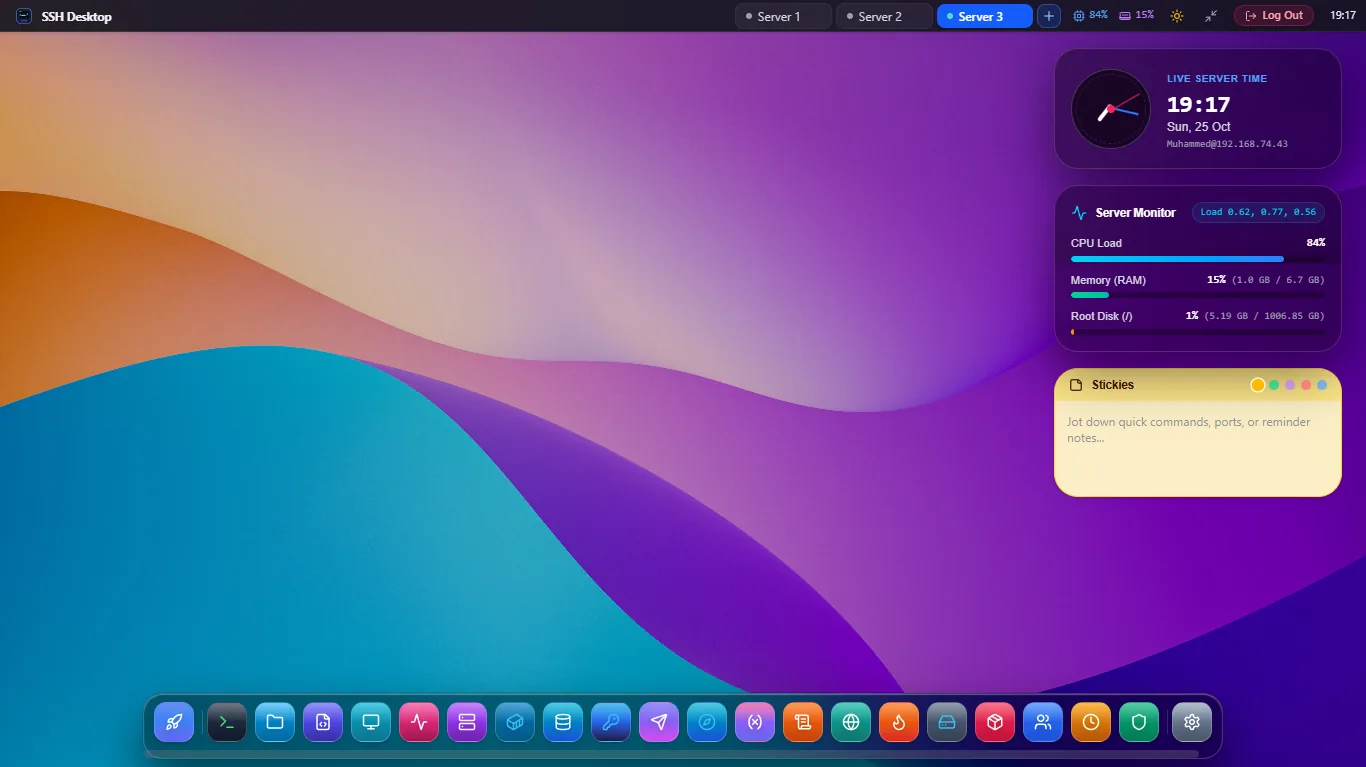
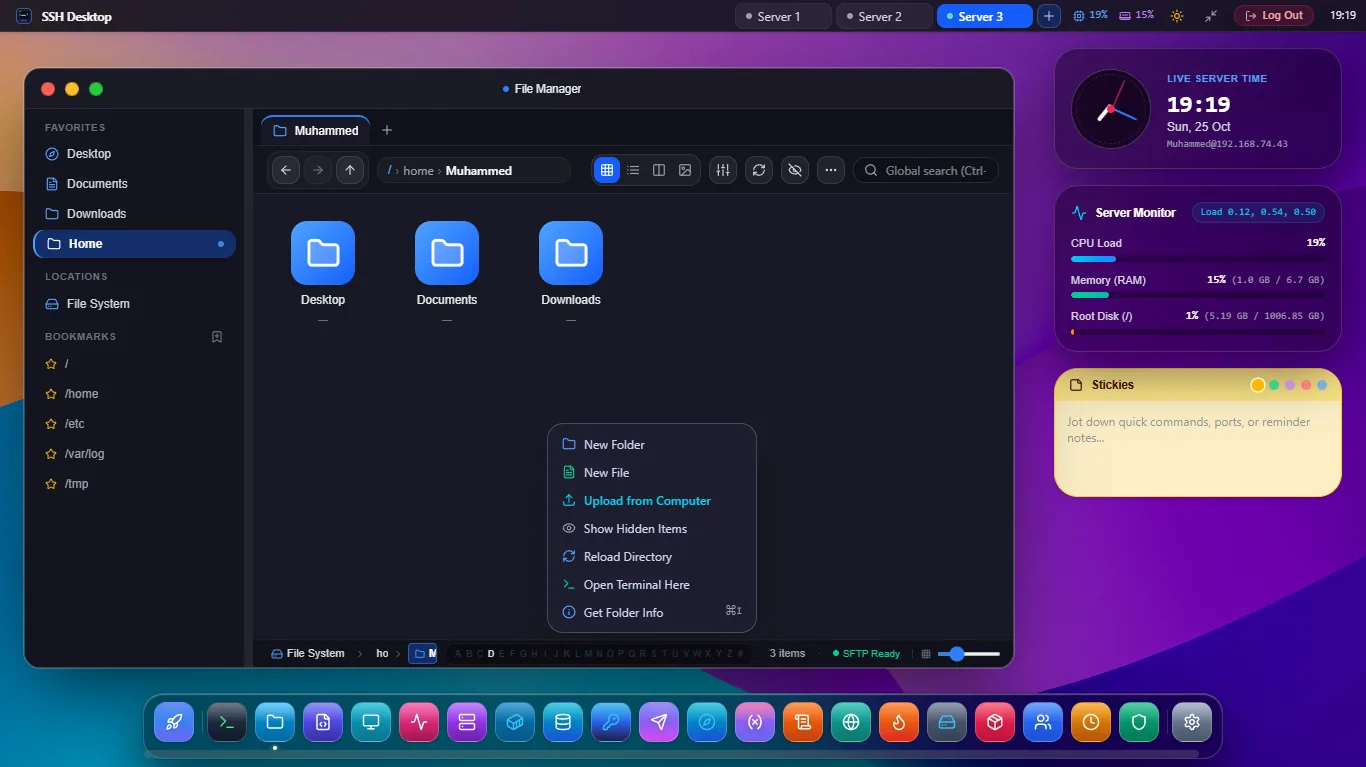
macOS Sonoma Cloud Desktop Shell Screenshot
Figure 1.1: Authentic macOS Sonoma interface with frosted glassmorphism, dynamic 4K wallpapers, and horizontal multi-server switching tabs.

Overview & Architecture

The macOS Sonoma Cloud Desktop Shell transforms any headless Linux VPS or physical server into an Apple-grade visual desktop workspace. Unlike high-latency VNC or RDP protocols that stream millions of uncompressed video pixels, SSH Desktop renders the entire desktop GUI locally on your client machine using native WebGL, CSS backdrop-filter glassmorphism, and hardware-accelerated DOM transforms.

Step-by-Step How-To Tutorial:

  1. Switching Dynamic 4K Wallpapers: Right-click anywhere on the desktop surface and select Change Desktop Background. Choose between official Sonoma, Ventura, Monterey, Big Sur, or Dark Cyberpunk themes. Wallpapers automatically adjust between Light and Dark mode based on your server's local time.
  2. Using Mission Control (Ctrl + F3 or F3): Press Ctrl + F3 to trigger the Exposé-style bird's-eye overview. All active windows instantly tile across your screen. Click any window to bring it to immediate foreground focus.
  3. Keyboard App Switcher (Ctrl + Tab or Alt + Tab): Hold Ctrl and tap Tab to cycle through running applications with real-time process badges and window previews.
  4. Remote Desktop Folder Drag-and-Drop: The desktop surface directly mirrors the remote directory ~/Desktop. You can drag files from your computer straight onto the remote desktop surface, create new folders, and select multiple icons with marquee selection.
  5. Managing Multiple Servers in Tabs: Open the horizontal top bar and click the + icon to establish SSH connections to secondary servers. Switch between production, staging, and development instances with zero lag.
App 2

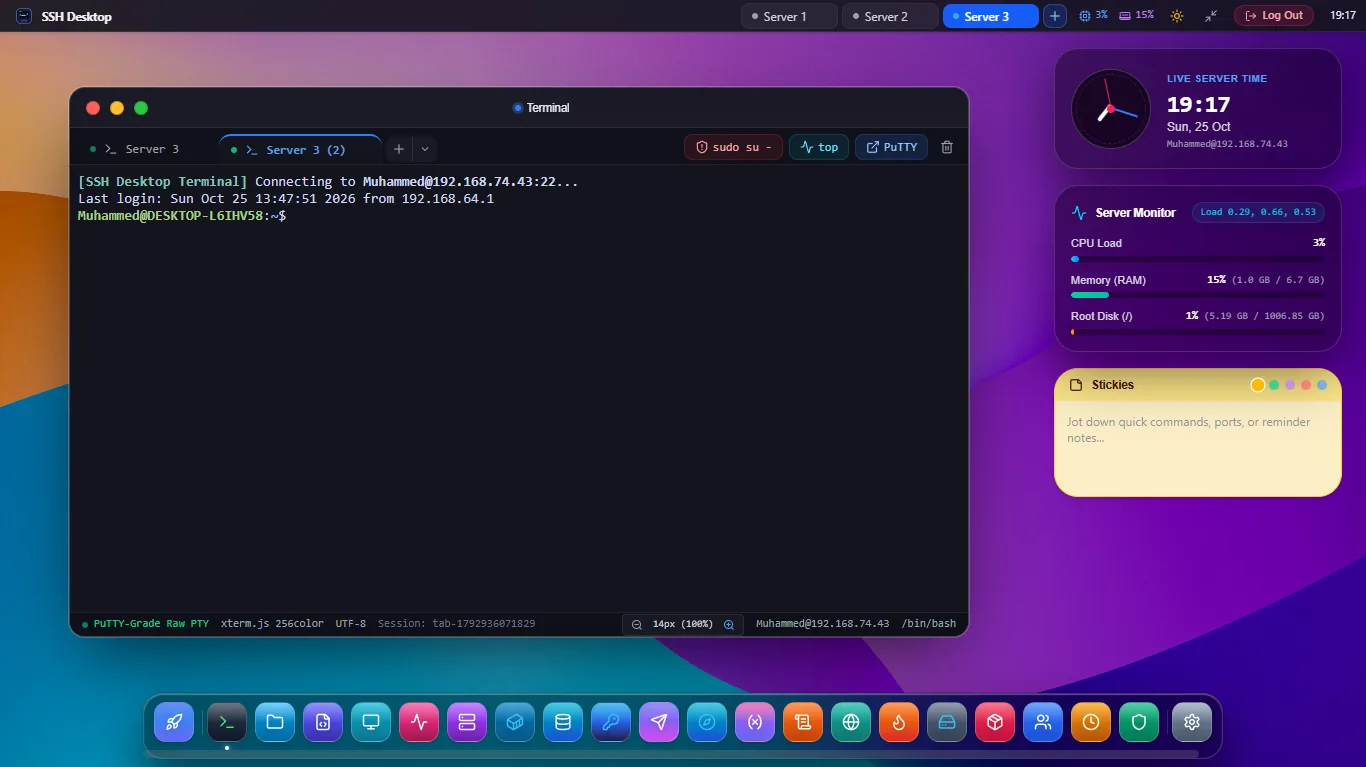
Interactive PTY Terminal (Xterm.js)

Intent: web ssh terminal, pty terminal emulator, xterm.js linux console
Interactive PTY Terminal with Split Panes Screenshot
Figure 2.1: True Pseudo-Terminal (PTY) emulator with horizontal/vertical split panes and Catppuccin Mocha theme.

Overview & Architecture

SSH Desktop's terminal is powered by the industry-standard Xterm.js engine paired with a native backend pseudo-terminal (/dev/pts) allocation. It passes all Linux requiretty checks and provides full support for complex ncurses interactive command-line software including nano, vim, htop, tmux, and less.

Step-by-Step How-To Tutorial:

  1. Splitting Terminal Panes: In any active terminal window, click the Split Vertical icon or press Ctrl + Shift + D to split your terminal vertically. To split horizontally, press Ctrl + Shift + E. Each pane runs an independent shell session.
  2. Switching Developer Themes: Click the terminal settings gear icon to select from five high-contrast color palettes: Catppuccin Mocha, Dracula, Monokai Pro, Nord, and Tokyo Night.
  3. Copy & Paste Keybindings: Highlight any text with your mouse to copy it automatically to your local clipboard. Press Ctrl + Shift + V (or Cmd + V on macOS) to paste text cleanly into the remote prompt without escaping glitches.
  4. Adjusting Scrollback & Font Size: Use Ctrl + + and Ctrl + - to dynamically resize typography. SSH Desktop retains up to 100,000 lines in the memory-optimized scrollback buffer.

Category 2: Files, Archives & Monaco Code Editor

App 3

Dual-Pane SFTP File Manager & In-Place Archive Engine

Intent: sftp client, remote file manager, linux file permissions GUI, extract zip on server
Dual-Pane SFTP File Manager Screenshot
Figure 3.1: Dual-pane SFTP file browser with visual permissions manager and in-place remote server zip extraction.

Overview & Architecture

Transferring multi-gigabyte archives to your local machine just to inspect or extract them wastes precious bandwidth and hours of time. SSH Desktop's dual-pane SFTP client features an integrated In-Place Remote Archive Engine that instructs the server to extract or bundle .zip, .tar.gz, and .tar.bz2 archives locally in milliseconds.

Step-by-Step How-To Tutorial:

  1. Extracting Archives in Place: Right-click any remote .zip or .tar.gz file and select Extract Here or Extract to Subfolder.... SSH Desktop executes a background uncompress command directly on the host with live progress indicators.
  2. Changing Permissions Visually (chmod & chown): Right-click any file or folder and click Properties & Permissions. Check or uncheck Read/Write/Execute boxes for Owner, Group, and Public, or type numeric octals (e.g., 755, 644, 600). Tick Apply Recursively to update nested subtrees.
  3. Toggling Dotfiles (Hidden Files): Press Ctrl + H or click the Show Hidden Files (.*) icon to instantly reveal dotfiles like .bashrc, .env, and .config.
  4. Local-to-Remote Drag & Drop: Simply drag files or folders from your computer desktop into any remote directory pane to trigger multi-threaded high-speed SFTP transfers with resume support.
App 4

Monaco Code Editor (VS Code Engine)

Intent: remote code editor, vs code for ssh, edit files over ssh, monaco editor sftp
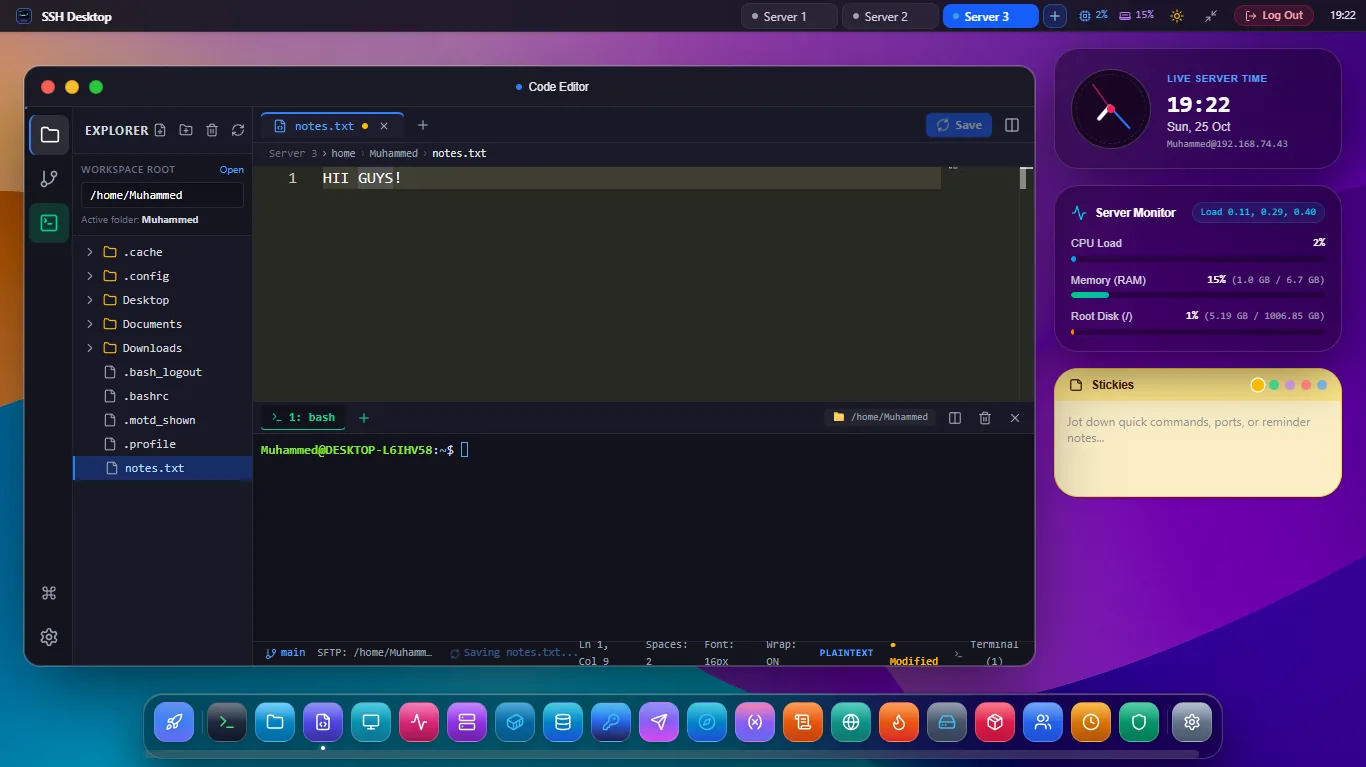
Monaco Code Editor with Diff Preview Screenshot
Figure 4.1: Embedded VS Code Monaco engine with 50+ languages, side-by-side diff previews, and direct Ctrl+S SFTP sync.

Overview & Architecture

Eliminate the friction of clunky terminal text editors. SSH Desktop integrates Microsoft's Monaco Editor—the identical editing core powering VS Code—directly into your server workspace. Edit configuration files, Python scripts, Dockerfiles, and shell automation scripts with full IntelliSense, bracket pair colorization, and syntax highlighting.

Step-by-Step How-To Tutorial:

  1. Opening Remote Files: Double-click any text or configuration file in the SFTP browser to open it immediately in Monaco.
  2. Editing with Keyboard Shortcuts: Use familiar VS Code keybindings: Ctrl + F for Find, Ctrl + H for Replace, Alt + ↑/↓ to move lines, and Ctrl + / to toggle line comments.
  3. Saving Directly to Server: Press Ctrl + S. SSH Desktop atomically uploads the updated buffer over encrypted SFTP with zero latency and verifies remote checksums.
  4. Inspecting In-Place Diffs: Before committing changes to production files (e.g. nginx.conf), click the Show Diff button to view a side-by-side visual diff comparing the original file against your active buffer.

Category 3: Docker Orchestration & Database Studio

App 5

Docker & Container Management Hub

Intent: docker web GUI, portainer alternative, docker container manager, remote docker dashboard
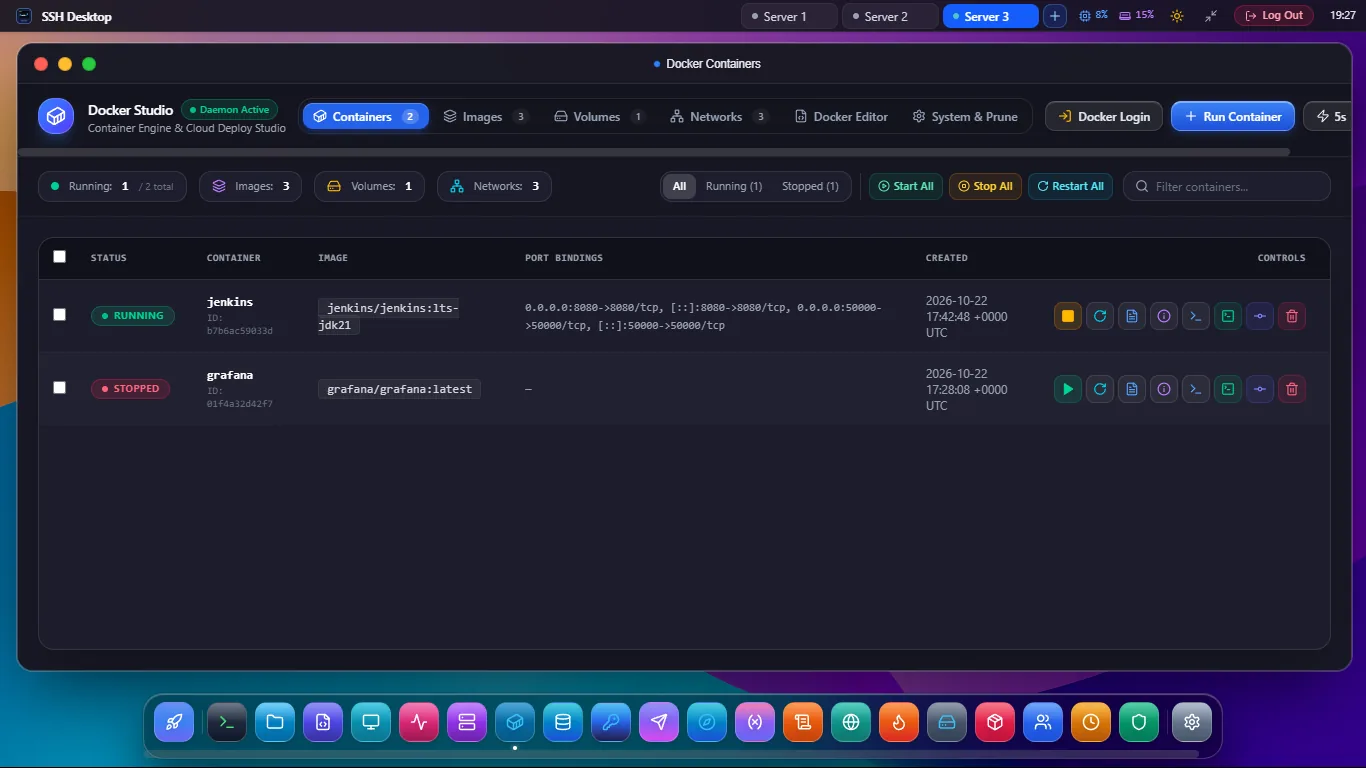
Docker Container Hub Screenshot
Figure 5.1: Real-time Docker container management hub with lifecycle controls, log streaming, and exec interactive shell.

Overview & Architecture

A lightweight, zero-overhead alternative to Portainer. SSH Desktop communicates directly with /var/run/docker.sock over your secure SSH connection without requiring any heavy Docker container agent or open web ports.

Step-by-Step How-To Tutorial:

  1. Controlling Container Lifecycles: View all containers with image tags, listening port mappings, and running uptime. Click Start, Stop, Restart, or Kill with safety confirmation prompts.
  2. Streaming Real-Time Logs: Click the Logs icon next to any container to stream live stdout and stderr with keyword search and ANSI color rendering.
  3. Spawning an Exec Interactive Shell: Click the Exec icon to open an instant interactive terminal session inside the running container (running /bin/bash or /bin/sh) directly in your browser.
  4. Pruning Unused Resources: Switch to the Images & Volumes tab to inspect dangling layers and reclaim gigabytes of disk space with the Prune Unused Images button.
App 6

Universal Multi-Engine Database Studio

Intent: database client with ssh tunnel, remote postgres gui, remote mysql client, redis web viewer
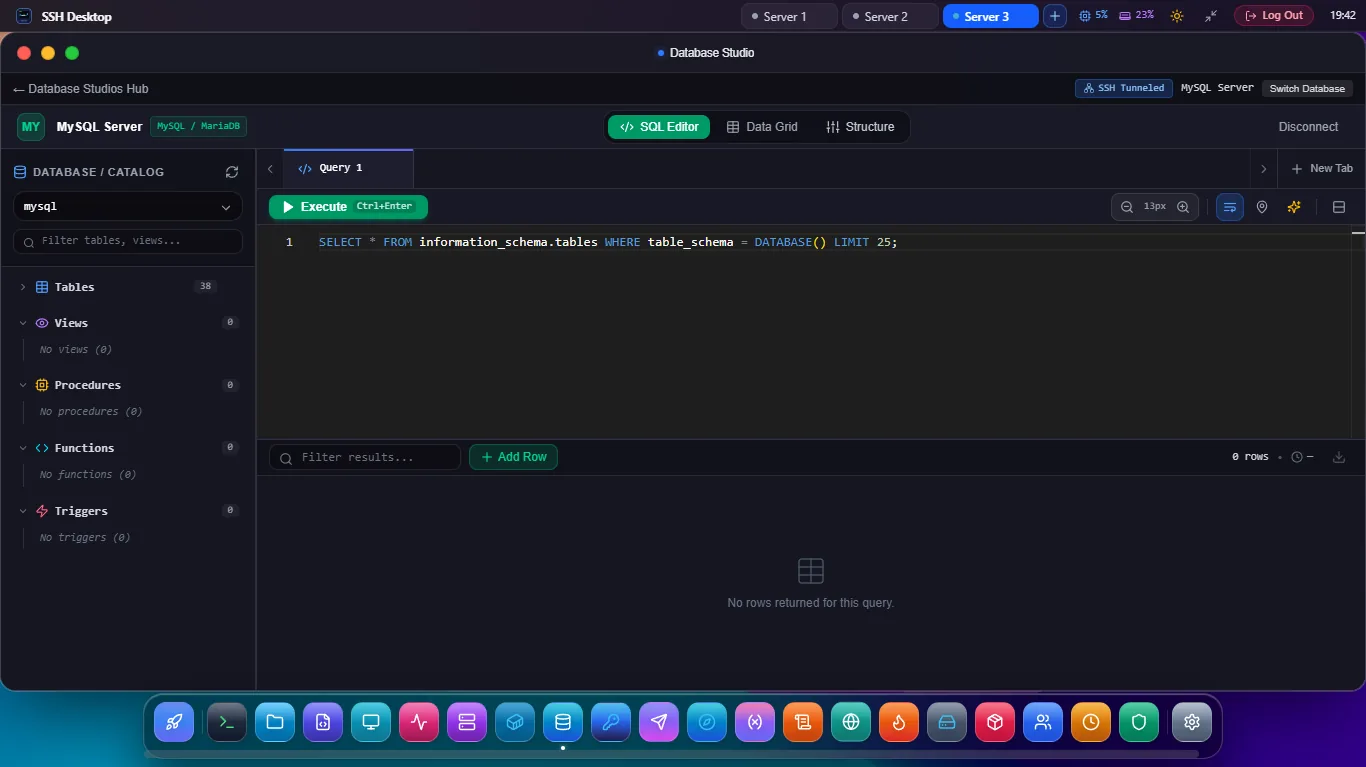
Universal Database Studio with Encrypted Tunnel Screenshot
Figure 6.1: Multi-engine database studio querying remote PostgreSQL over an automatic encrypted SSH tunnel.

Overview & Architecture

Opening database ports (5432, 3306, 6379, 27017) to the public internet is a catastrophic security vulnerability. SSH Desktop automatically establishes an ephemeral, encrypted local SSH tunnel to 127.0.0.1, enabling you to inspect, edit, and query private databases without public attack surfaces.

Step-by-Step How-To Tutorial:

  1. Selecting Engine & Credentials: Choose your database dialect: PostgreSQL, MySQL, MariaDB, Redis, SQLite, or MongoDB. SSH Desktop uses the active SSH session as the secure transport tunnel.
  2. Browsing Tables & Editing Data: Click any table to load the interactive data grid. Sort columns, filter rows with visual criteria, and double-click any cell to edit values directly.
  3. Executing Custom SQL Queries: Switch to the SQL Query Editor tab. Enter multi-line queries with syntax highlighting and press Ctrl + Enter to execute and measure latency.
  4. Inspecting Redis & MongoDB: For Redis, browse keys, view data types (Strings, Hashes, Sets, Lists), and inspect TTL expiration. For MongoDB, view collections as formatted JSON documents.

Category 4: Systemd Services, Telemetry & Process Manager

App 7

Systemd Services & Daemons Manager

Intent: systemd GUI, linux service manager, systemctl web interface, manage background services
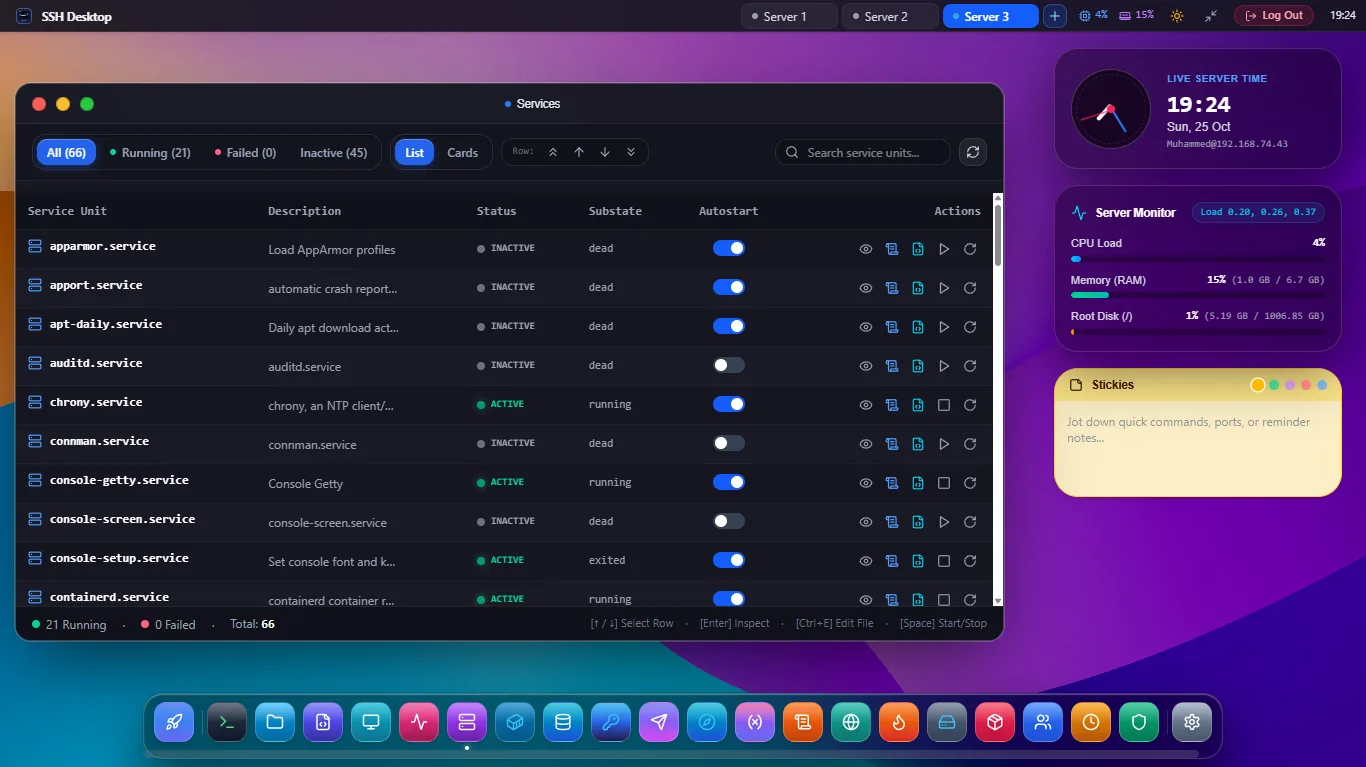
Systemd Services Manager Screenshot
Figure 7.1: Visual systemctl manager with real-time unit status, boot-time enablement toggles, and live journalctl log streaming.

Overview & Architecture

Inspect, control, and troubleshoot all systemd services, daemons, timers, and sockets graphically. View active states, loaded paths, memory footprints, and boot-time enablement status without typing verbose systemctl commands.

Step-by-Step How-To Tutorial:

  1. Filtering Service Units: Filter services by status: All Units, Active (Running), or Failed Units to quickly diagnose crashed services.
  2. Service Lifecycle Controls: Click Start, Stop, or Restart for services like nginx, docker, or postgresql.
  3. Toggling Boot-Time Enablement: Toggle the Enable/Disable switch to control whether a service automatically launches upon server restart.
  4. Streaming Real-Time Journalctl Logs: Click any service to view its live journalctl -u [unit] -f stream directly underneath the service table with zero buffer delay.
Apps 9 & 10

Hardware Telemetry & Process Manager (htop Alternative)

Intent: linux server monitor, real time cpu ram gauge, htop web interface, kill process linux GUI
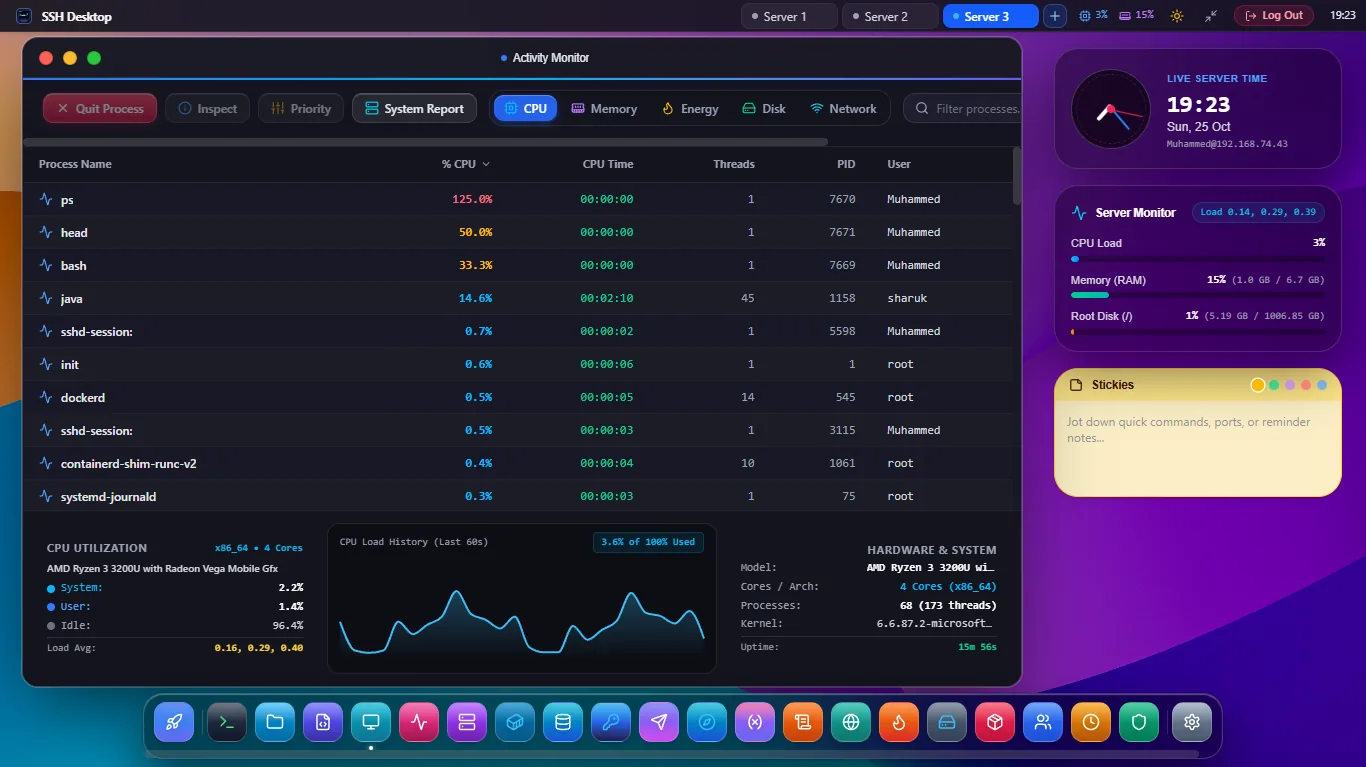
Hardware Telemetry and Process Manager Screenshot
Figure 9.1: Live CPU, RAM, network bandwidth telemetry gauges with interactive process tree and kill signal dispatcher.

Overview & Architecture

Parse hardware metrics directly from /proc/stat and /proc/meminfo with sub-second polling frequency and zero server overhead. The integrated Process Manager lets you audit CPU hogs, send POSIX signals, and adjust scheduler priority.

Step-by-Step How-To Tutorial:

  1. Monitoring Hardware Gauges: Inspect real-time CPU utilization percentage across all cores, RAM usage, swap space, and 1m/5m/15m system load averages.
  2. Auditing Running Processes: Search processes by PID, executable name, or user. Sort columns by CPU% or Memory% to pinpoint runaway tasks.
  3. Sending POSIX Signals: Select a process and click Stop (SIGTERM) for graceful shutdown, or Kill (SIGKILL -9) to force terminate hung processes immediately.
  4. Renicing CPU Priority: Click Nice to adjust the process execution priority between -20 (highest CPU priority) and 19 (lowest priority).

Category 5: Firewall, Port Forwarding & Network Auditing

App 8

Visual Firewall Manager (UFW, Iptables, Nftables)

Intent: UFW GUI, linux firewall web interface, iptables GUI, open port ubuntu
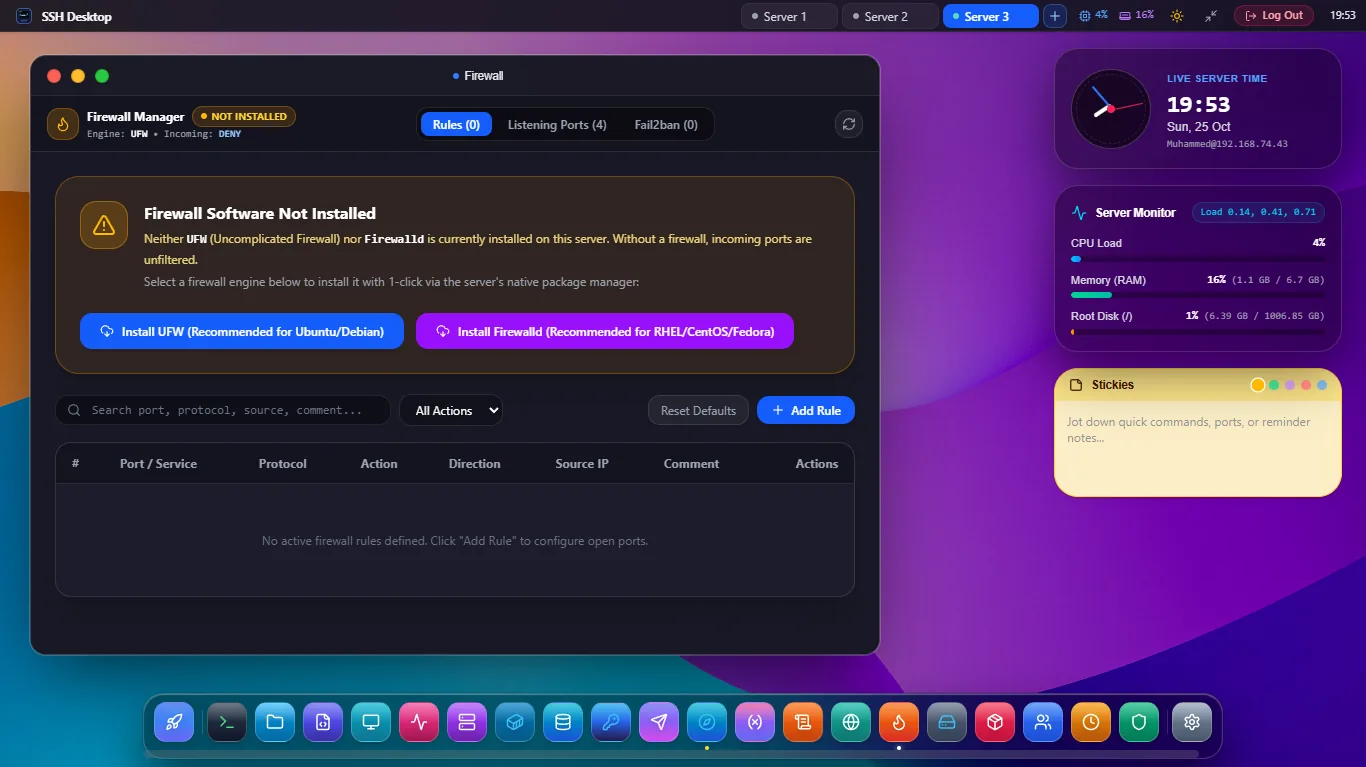
Visual Firewall Manager Screenshot
Figure 8.1: Visual UFW and Iptables firewall manager with rule builder and built-in SSH lockout protection.

Overview & Architecture

Configure server packet filtering without risking locking yourself out of SSH. SSH Desktop automatically detects whether your system runs ufw, iptables, or nftables, and validates rules before applying them.

Step-by-Step How-To Tutorial:

  1. Opening Common Ports (HTTP, HTTPS, SSH): Click + Add Rule. Select common service presets (SSH 22, HTTP 80, HTTPS 443, MySQL 3306) or specify a custom port and protocol (TCP/UDP).
  2. Restricting Traffic to Specific Subnets: Set the Source IP to an authorized CIDR block (e.g. 192.168.1.0/24 or your office IP) to ensure database or internal management ports are never exposed publicly.
  3. Applying Rate-Limiting for SSH: Select Limit action for Port 22 to automatically deny connections from IP addresses that attempt 6 or more connections within 30 seconds.
  4. SSH Lockout Protection: Before enabling the firewall or modifying Port 22, SSH Desktop verifies that your active management connection is explicitly permitted, preventing accidental server lockouts.
App 17

SSH Port Forwarding & Multi-Protocol Tunnel Canvas

Intent: visual ssh tunnel builder, local remote socks5 port forwarding GUI
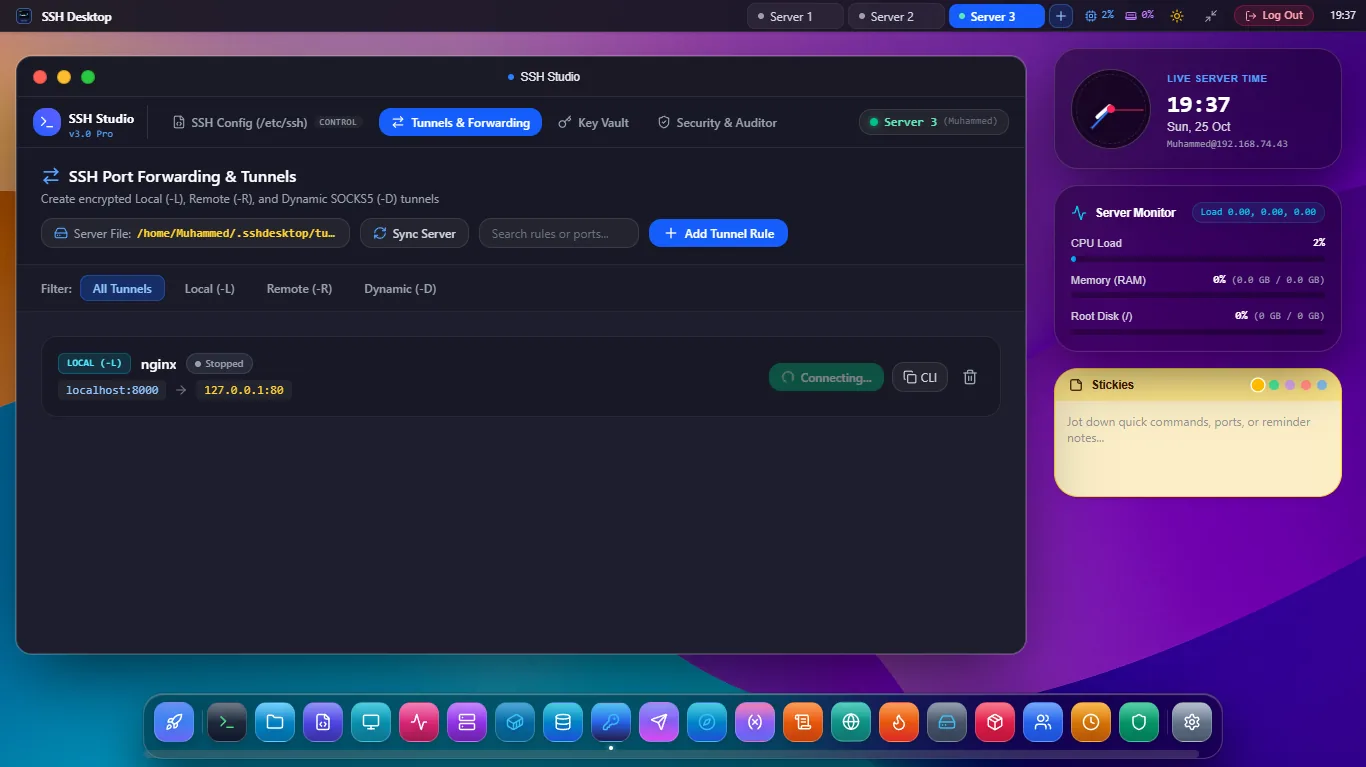
SSH Port Forwarding Canvas Screenshot
Figure 17.1: Interactive network tunnel canvas supporting Local (-L), Remote (-R), and Dynamic SOCKS5 (-D) proxy routes.

Overview & Architecture

Visualize and control complex SSH tunneling topologies. SSH Desktop renders live data-flow diagrams for Local, Remote, and SOCKS5 tunnels with automatic reconnect and throughput meters.

Step-by-Step How-To Tutorial:

  1. Local Port Forwarding (-L): Bind a local port (e.g. 127.0.0.1:5433) through the SSH server to reach an internal private database (e.g. 10.0.4.12:5432).
  2. Dynamic SOCKS5 Proxy (-D): Bind local port 1080 as a SOCKS5 proxy. Configure your browser to browse internal VPC web interfaces with encrypted traffic.
  3. Remote Reverse Tunneling (-R): Forward a port on the remote server back to your local development machine (e.g. localhost:3000) to receive external webhooks without deploying.
  4. Configuring Jump Hosts (ProxyJump): Route tunnels through intermediate bastion servers by selecting a Jump Host in your host profile.

Category 6: Server Automation, Packages, Backups & Logs

App 11

Multi-Distribution Package Manager

Universal Package GUI for apt, dnf, yum, pacman & apk

Manage system software packages across any Linux distribution without memorizing distro-specific package manager syntax. Automatically detects whether your server runs apt (Debian/Ubuntu), dnf/yum (RHEL/Rocky/Fedora), pacman (Arch), or apk (Alpine).

$ sudo apt update && sudo apt list --upgradable
  1. Update Repositories: Click Check Updates to synchronize remote repository indexes and scan for pending security updates.
  2. 1-Click Package Upgrades: Inspect upgradable dependencies, review changelogs, and run full system upgrades with live terminal logging.
  3. Software Repository Auditor: Inspect and toggle configured package repositories in /etc/apt/sources.list or /etc/yum.repos.d/.
App 12

User & Group Accounts Administrator

Linux User Manager GUI, Sudoers & Active Session Auditor

Visually manage Linux user accounts, administrative groups, and active SSH login sessions. Eliminates syntax mistakes when granting sudo privileges or changing user passwords.

$ sudo useradd -m -s /bin/bash deployer && sudo usermod -aG sudo deployer
  1. Creating New Users: Specify username, home directory creation (-m), and assign custom default login shells (/bin/bash, /bin/zsh).
  2. Non-Interactive SHA-512 Password Hashing: Update passwords safely via salted crypt-hash generation without displaying passwords in shell history.
  3. Sudoers Group Toggling: Add or remove users from sudo or wheel administrative groups with a single toggle switch.
  4. Active Session Kick: View all currently logged-in users (who, last) and instantly terminate unauthorized or stale SSH sessions.
App 13

Network & Listening Port Auditor

Active Sockets Explorer, Interface IPs & Network Diagnostics

Inspect every network socket listening for inbound connections on your server. Identify rogue processes, audit interface IP addresses, and run integrated network latency tests.

$ sudo ss -tulpn | grep LISTEN
  1. Listening Ports Scanner: Live table showing Port, Protocol (TCP/UDP), Process Name, PID, and Bound Address (0.0.0.0 vs 127.0.0.1).
  2. Network Interface Explorer: Audit all network devices (eth0, docker0, wg0), MAC addresses, IPv4/IPv6 CIDRs, and MTU settings.
  3. Integrated Diagnostics: Run ICMP Ping tests, multi-hop Traceroutes, and DNS resolution lookups directly from the server.
App 14

Disk, Partition & S.M.A.R.T. Manager

Storage Space Breakdown, Large Directory Analyzer & NVMe Health

Visual disk capacity auditor for Linux storage. Prevent out-of-disk production outages with interactive directory size heatmaps and S.M.A.R.T. drive health monitoring.

$ df -hT --exclude-type=tmpfs && sudo smartctl -H /dev/nvme0n1
  1. Storage Space Breakdown: Visual gauge meters for root /, mounted storage, and attached cloud block volumes.
  2. Large Directory Analyzer (ncdu GUI): Scan storage to instantly pinpoint the top directories and runaway log files consuming disk space.
  3. Mount & Fstab Manager: Mount, unmount, and edit /etc/fstab persistent mount entries with automatic syntax validation.
  4. S.M.A.R.T. Drive Health: Audit NVMe and SSD drive temperatures, reallocated sectors, and estimated remaining lifespan.
App 15

Visual Crontab & Scheduled Jobs Manager

Human-Friendly Cron Builder, Dry-Run Simulator & Log Auditor

Create, edit, and audit scheduled Linux cron jobs without syntax errors. Features an interactive cron expression builder and execution dry-run simulator.

$ crontab -l && grep CRON /var/log/syslog | tail -n 10
  1. Visual Expression Builder: Configure schedules using intuitive dropdowns (minute, hour, day, month, weekday) with human-readable preview (e.g. "Every day at 03:00 AM").
  2. User & System Crontab Toggling: Manage standard user crontabs as well as root-level system jobs in /etc/crontab and /etc/cron.d/.
  3. Dry-Run Command Simulator: Test job commands in a temporary subshell to verify exit codes before adding them to the schedule.
App 16

SSL/TLS Certificate Manager (Let's Encrypt)

Free Let's Encrypt Issuance, Certbot Auto-Renewals & Nginx Configs

Automate free SSL certificate issuance and renewal via integrated Certbot management. Monitor certificate expiration dates across all domain names.

$ sudo certbot certonly --nginx -d example.com -d www.example.com
  1. 1-Click Certificate Issuance: Enter your domain names and let SSH Desktop run Certbot HTTP-01 or DNS-01 verification automatically.
  2. Auto-Renewal Daemon: Schedule automated background renewals to eliminate expired SSL certificate downtime.
  3. Web Server Integration: Automatically inject SSL certificates and private keys into Nginx or Apache configuration files and trigger graceful reloads.
App 18

Security Audit & Hardening Inspector

Lynis Security Benchmark, CIS Hardening & Fail2ban Monitor

Run comprehensive Linux server security audits and CIS benchmark verifications. Identify vulnerabilities, weak SSH configurations, and active brute-force attacks.

$ sudo lynis audit system --quick
  1. 1-Click Lynis Auditing: Execute automated system scans and receive a comprehensive 0-100 Hardening Index score.
  2. SSH Daemon Hardening: Inspect /etc/ssh/sshd_config to verify root login disabling, password authentication removal, and port configuration.
  3. Fail2ban Jail Monitor: View active jail statuses, inspect banned IP addresses, and unban legitimate IP addresses with 1 click.
App 19

Backup & Disaster Recovery Orchestrator

Deduplicated Restic Snapshots, Rsync Sync & S3 Offsite Backups

Schedule encrypted, deduplicated file and database backups using Restic snapshots or Rsync. Support for local disks, remote SFTP servers, and AWS S3/Wasabi buckets.

$ restic -r s3:s3.amazonaws.com/company-backups backup /var/www /etc
  1. Connecting Storage Targets: Configure encrypted backup destinations on secondary NVMe disks, remote backup servers, or AWS S3 buckets.
  2. Automated Snapshot Schedules: Define backup frequency with custom retention policies (e.g. keep 7 daily, 4 weekly, 12 monthly snapshots).
  3. 1-Click Disaster Recovery: Browse snapshot file trees and restore files or database dumps to their original or alternate directory.
App 20

Webhook & CI/CD Deployment Server

Git Push Deployments, HMAC Authentication & Live Terminal Logs

Trigger automated deployment scripts and server tasks via authenticated HTTP webhooks from GitHub, GitLab, Bitbucket, or CI/CD pipelines.

$ curl -X POST https://server:8443/webhook/deploy -H "X-Hub-Signature-256: sha256=..."
  1. Creating Webhook Endpoints: Create custom routes (e.g. POST /webhook/deploy-production) secured with HMAC SHA-256 secret verification.
  2. Binding Shell Scripts: Assign shell commands (e.g. git pull && docker compose up -d --build) to execute on successful webhook receipt.
  3. Live Execution Logs: Audit incoming webhook request payloads, HTTP headers, execution output logs, and latency timers.
App 21

Multi-Server Automation & Snippets

Batch Command Broadcast, Reusable Snippets & Cluster Management

Save reusable shell snippets in a personal library and broadcast commands simultaneously across 10+ server clusters concurrently with unified output aggregation.

$ for srv in $SERVERS; do ssh $srv "sudo systemctl restart nginx"; done
  1. Reusable Snippet Library: Store parameterized bash commands with variables (e.g. {{SERVER_IP}}, {{DOMAIN}}) for instant recall.
  2. Cluster Broadcast: Select target servers (Production, Staging, QA) and execute commands concurrently across all machines.
  3. Aggregated Output Stream: Monitor output from each server side-by-side with exit code indicators and error highlights.
App 22

Log Analysis & Grep Studio

Real-Time Log Streaming (tail -f), Regex Filters & ANSI Highlighting

High-speed multi-file log viewer and real-time regex search engine. Search across /var/log/syslog, Nginx access logs, and Docker container streams simultaneously.

$ sudo journalctl -xeu nginx --since "1 hour ago" | grep -iE "error|warn"
  1. Multi-File Log Streaming: Stream output from multiple log files in unified or tabbed views with automatic timestamp synchronization.
  2. Live Regular Expression Filter: Search through gigabytes of logs with instant regex filtering and error level color tags (ERROR, WARN, INFO).
  3. Exporting Incident Reports: Export matched log lines directly to Markdown or text files for post-mortem incident documentation.

Frequently Asked Questions

Clear answers to common questions about SSH Desktop, security, and setup.

How does SSH Desktop compare to Webmin and Cockpit?

Webmin and Cockpit require open web server ports (10000 or 9090) and install heavy server dependencies with potential attack vectors. SSH Desktop connects over the standard SSH2 protocol (port 22) or runs an ultra-lightweight 12MB Go/Rust binary. It includes 25 native apps, a full macOS-grade desktop experience, an integrated database studio, and visual tunnels that Webmin and Cockpit lack entirely.

Can I use SSH Desktop on headless Linux servers without a desktop environment?

Yes, absolutely. The target Linux server does not need X11, Wayland, GNOME, or any desktop packages installed. SSH Desktop renders the entire macOS Sonoma desktop shell locally on your client or in your browser using WebGL and DOM acceleration while sending standard SSH/PTY commands to the headless server.

Is my server login data or private keys sent to any cloud server?

No. SSH Desktop has zero cloud telemetry and zero third-party relays. Your SSH private keys, passwords, and sessions remain strictly on your local device. Connections travel directly from your machine to your server over end-to-end encrypted SSH2 tunnels.

How do I connect to a private database without exposing public ports?

Open App 6 (Universal Database Studio). When entering your PostgreSQL, MySQL, or Redis host, specify 127.0.0.1. SSH Desktop automatically routes the database connection through an encrypted SSH tunnel over port 22, so you never need to open database ports in your server firewall.

What operating systems can run SSH Desktop?

SSH Desktop is available natively for Windows 11/10 (64-bit x64, Portable), macOS Sonoma/Ventura/Monterey (64-bit Universal), Linux Desktop (Ubuntu/Debian .deb, Fedora .rpm, AppImage, Flatpak), and headless Linux servers via standalone binary and 1-line installation script.

Start Managing Your Linux Servers Visually

Download the free desktop application or deploy the 1-line server daemon today. No credit card required.